
When I was learning how to set up a WireGuard VPN for remote access to my home network, the tutorial I was following recommended that I configure something called Dynamic DNS (DDNS).
I had no idea what this was or why it was necessary here. But, it didn’t take long for my curiosity to send me down a rabbit hole regarding this, after which I learned that DDNS does solve an important problem. Namely, that without it your VPN might work just fine one day and mysteriously refuse to work the next.
The Problem#
Your home router joins two networks: a local area network (LAN) for your devices, and your internet service provider’s (ISP) upstream network, known as the wide area network (WAN), which connects you to the internet.
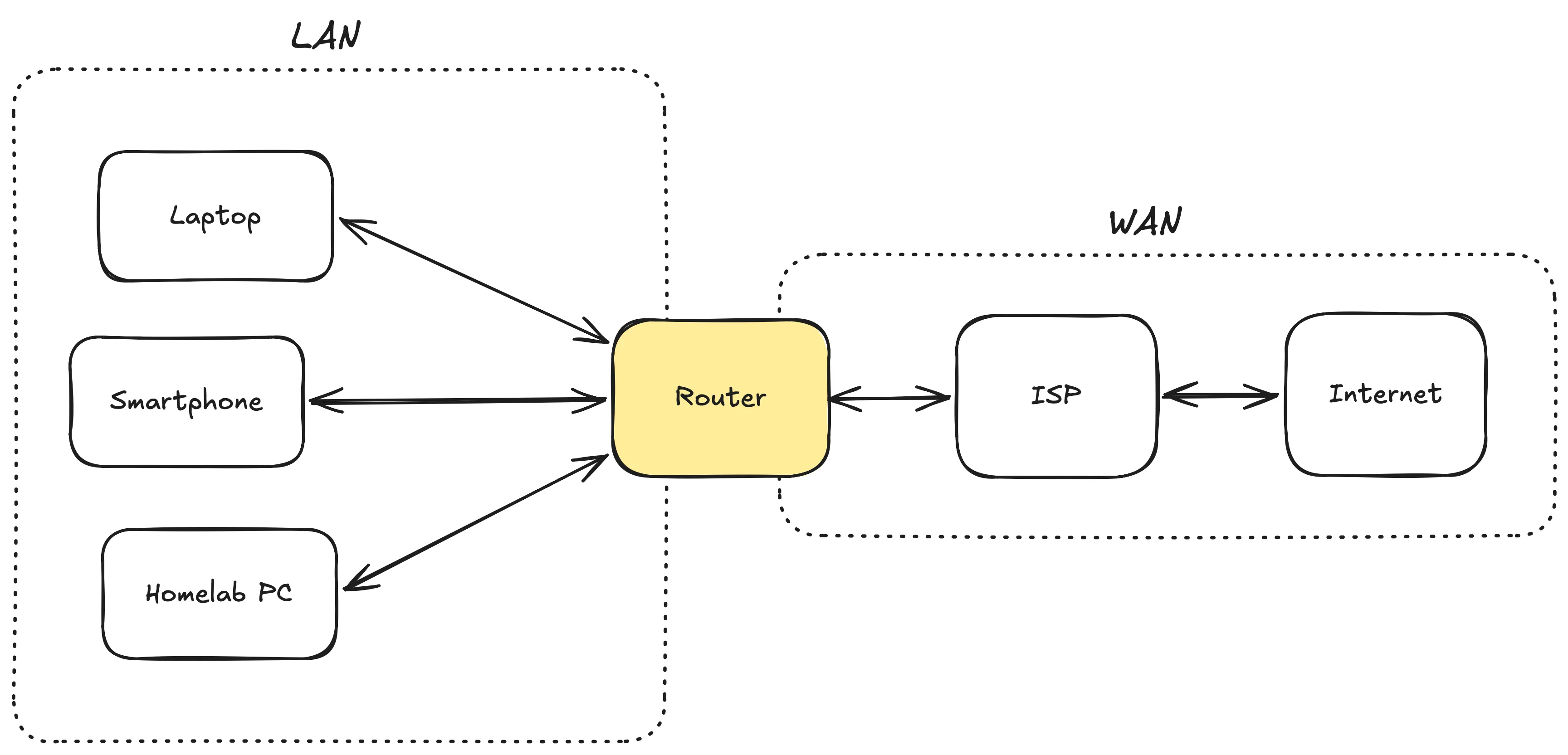
When your router connects online, your ISP assigns it a WAN IP address. This particular IP address is different from the one you use to log into your router, known as the LAN IP address (which is often either 192.168.0.1 or 192.168.1.1).
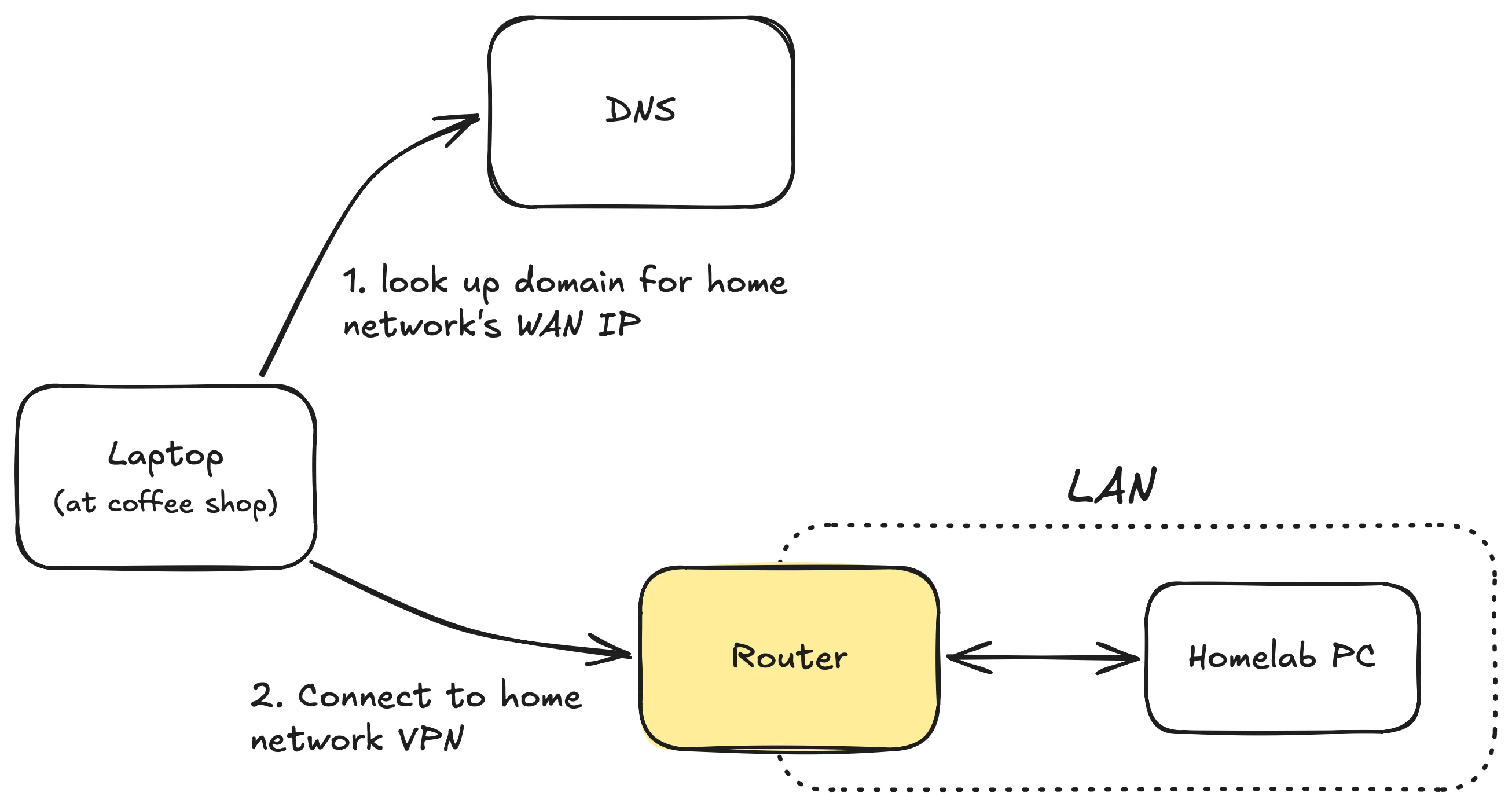
If, for instance, you’re at a coffee shop and want to use WireGuard to connect to your home network, your computer needs to know your router’s current WAN IP address to make that connection. Unfortunately, this IP address can’t be hardcoded because it’s dynamically assigned by your ISP, meaning that it may change over time. Events such as power outages, modem reboots, or even scheduled ISP maintenance can cause it to shift. In practice it may actually stay the same for months, but you can’t always count on that.
Dynamic DNS resolves this issue by helping you define a fixed endpoint that your computer can use to look up your router’s WAN IP address even when it changes.
Dynamic DNS as a Solution#
Before getting into what DDNS is, let’s briefly cover DNS, the domain name system. A helpful analogy is that DNS functions as the phonebook of the internet. It maps domain names to IP addresses. For instance, when you type example.com into your browser, your computer sends a request to a DNS server to identify the IP address of the server hosting that website. Afterwards, your computer sends a request to that IP address to load the page.
Similarly, to get around the issue of your home network’s WAN IP address shifting, you can register a domain name (or grab a free subdomain from a DDNS provider) and point it to that IP address. You can then use a DDNS service to automatically update this mapping so that it always points to your current WAN IP address.
Now, when you attempt to connect to your home VPN you can first have your computer look up that domain to find your WAN IP address and connect to it from there.
There are many DDNS services out there including DuckDNS, NoIP, and CloudFlare. You can even self-host this as well, which is what I do.
How I Handle Dynamic DNS#
I’ve been self-hosting my own DDNS service using a tool known as ddns-updater. For this, I purchased a domain on Porkbun and ran the ddns-updater client in a docker container to update the DNS records of that domain.
I went with this approach as it was recommended by the Porkbun documentation. If you opt to use a different DNS provider, ddns-updater also works with many others including DigitalOcean, Cloudflare, Namecheap, and more.
Final Thoughts#
DDNS turned out to be a lot less complicated to understand and set up than I expected. And now I can rest knowing that my VPN will continue to work regardless of my ISP’s shenanigans.